> ## Documentation Index
> Fetch the complete documentation index at: https://trigger-docs-max-duration.mintlify.site/llms.txt
> Use this file to discover all available pages before exploring further.
# Triggering tasks from Supabase database webhooks
> This guide will show you how to trigger a task when a row is added to a table using a Supabase database webhook and edge function.
## Overview
Database webhooks allow you to send realtime data from your database to another system whenever an event occurs in your table e.g. when a row is inserted, updated, or deleted, or when a specific column is updated.
This guide shows you how to set up a Supabase database webhook and deploy a simple edge function that triggers a "Hello world" task every time a new row is inserted into your table.
## Prerequisites
* Ensure you have the [Supabase CLI](https://supabase.com/docs/guides/cli/getting-started) installed
* Ensure TypeScript is installed
* [Create a Trigger.dev account](https://cloud.trigger.dev)
* [Create a new Trigger.dev project](/guides/dashboard/creating-a-project)
## Initial setup
If you already have a Supabase project on your local machine you can skip this step.
You can create a new project by running the following command in your terminal using the Supabase CLI:
```bash
supabase init
```
If you are using VS Code, ensure to answer 'y' when asked to generate VS Code settings for Deno,
and install any recommended extensions.
If your project does not already have `package.json` or/and `tsconfig.json` files (e.g. if you are using Deno), create them manually and add them to your project root folder.
If your project has these files you can skip this step.
Both of these files are required for the Trigger.dev SDK to work correctly.
```ts package.json
{
"devDependencies": {
// This should be the version of typescript you are using
"typescript": "^5.6.2"
}
}
```
```ts tsconfig.json
{
"compilerOptions": {
"target": "esnext",
"module": "NodeNext",
"moduleResolution": "NodeNext",
"esModuleInterop": true,
"strict": true,
"outDir": "dist",
"skipLibCheck": true,
"lib": ["DOM", "DOM.Iterable"],
"noEmit": true
},
"include": ["./src/**/*.ts", "trigger.config.ts"]
}
```
The easiest way to get started is to use the CLI. It will add Trigger.dev to your existing project, create a `/trigger` folder and give you an example task.
Run this command in the root of your project to get started:
```bash npm
npx trigger.dev@latest init
```
```bash pnpm
pnpm dlx trigger.dev@latest init
```
```bash yarn
yarn dlx trigger.dev@latest init
```
It will do a few things:
1. Log you into the CLI if you're not already logged in.
2. Create a `trigger.config.ts` file in the root of your project.
3. Ask where you'd like to create the `/trigger` directory.
4. Create the `/trigger` directory with an example task, `/trigger/example.[ts/js]`.
Install the "Hello World" example task when prompted. We'll use this task to test the setup.
The CLI `dev` command runs a server for your tasks. It watches for changes in your `/trigger` directory and communicates with the Trigger.dev platform to register your tasks, perform runs, and send data back and forth.
It can also update your `@trigger.dev/*` packages to prevent version mismatches and failed deploys. You will always be prompted first.
```bash npm
npx trigger.dev@latest dev
```
```bash pnpm
pnpm dlx trigger.dev@latest dev
```
```bash yarn
yarn dlx trigger.dev@latest dev
```
The CLI `dev` command spits out various useful URLs. Right now we want to visit the Test page .
You should see our Example task in the list , select it. Most tasks have a "payload" which you enter in the JSON editor , but our example task doesn't need any input.
Press the "Run test" button .

Congratulations, you should see the run page which will live reload showing you the current state of the run.

If you go back to your terminal you'll see that the dev command also shows the task status and links to the run log.

## Create and deploy a new Supabase edge function and create a new database webhook
First, go to your Trigger.dev [project dashboard](https://cloud.trigger.dev) and copy the `prod` secret key from the API keys page.

Then, in [Supabase](https://supabase.com/dashboard/projects), select the project you want to use, navigate to 'Project settings' , click 'Edge functions' in the configurations menu, and then click the 'Add new secret' button.
Add `TRIGGER_SECRET_KEY` with the pasted value of your Trigger.dev `prod` secret key.
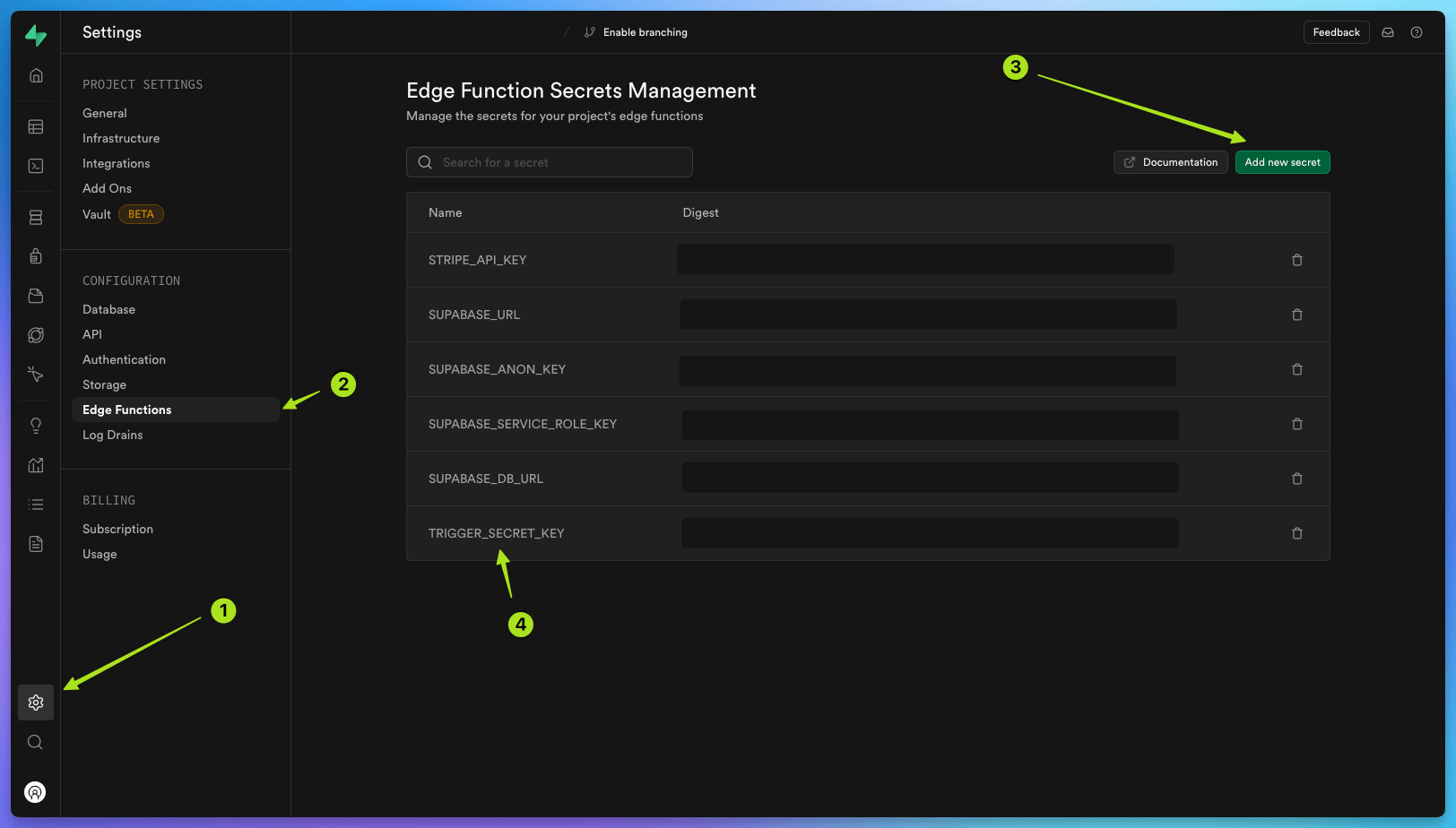
Now create a new edge function using the Supabase CLI. We will call it `database-webhook`.
```bash
supabase functions new database-webhook
```
Replace the `database-webhook` placeholder code with the following code:
```ts functions/database-webhook/index.ts
import "jsr:@supabase/functions-js/edge-runtime.d.ts";
// Import the Trigger.dev SDK - replace "" with the version of the SDK you are using, e.g. "3.0.0". You can find this in your package.json file.
import { tasks } from "npm:@trigger.dev/sdk@3.0.0/v3";
// Import your task type from your /trigger folder
import type { helloWorldTask } from "../../../src/trigger/example.ts";
// 👆 **type-only** import
console.log("Hello from 'database-webhook' function!");
Deno.serve(async (req) => {
// Listens for incoming JSON requests
const payload = await req.json();
// Triggers the "hello-world" task with the payload
await tasks.trigger(
// Your task id
"hello-world",
// Your task payload. This will be the data you receive from the database webhook
payload
);
return new Response("ok");
});
```
This code sets up a Deno server that listens for incoming JSON requests, triggers a "hello-world" task, logs the received payload, and responds with "ok". This setup is typical for a webhook endpoint that processes incoming data and triggers some action (in this case, the "hello-world" task) based on that data.
You can only import the `type` from the task.
Tasks in the `trigger` folder use Node, so they must stay in there or they will not run,
especially if you are using a different runtime like Deno. Also do not add "`npm:`" to imports
inside your task files, for the same reason.
Now deploy your edge function with the following command:
```bash
supabase functions deploy database-webhook
```
Follow the CLI instructions, selecting the same project you added your `prod` secret key to, and once complete you should see your new edge function deployment in your Supabase edge functions dashboard.
There will be a link to the dashboard in your terminal output, or you can find it at this URL:
`https://supabase.com/dashboard/project//functions`
Replace `your-project-id` with your actual project ID.
Next, in your Supabase project dashboard, click on 'Table Editor' in the left-hand menu and create a new table.
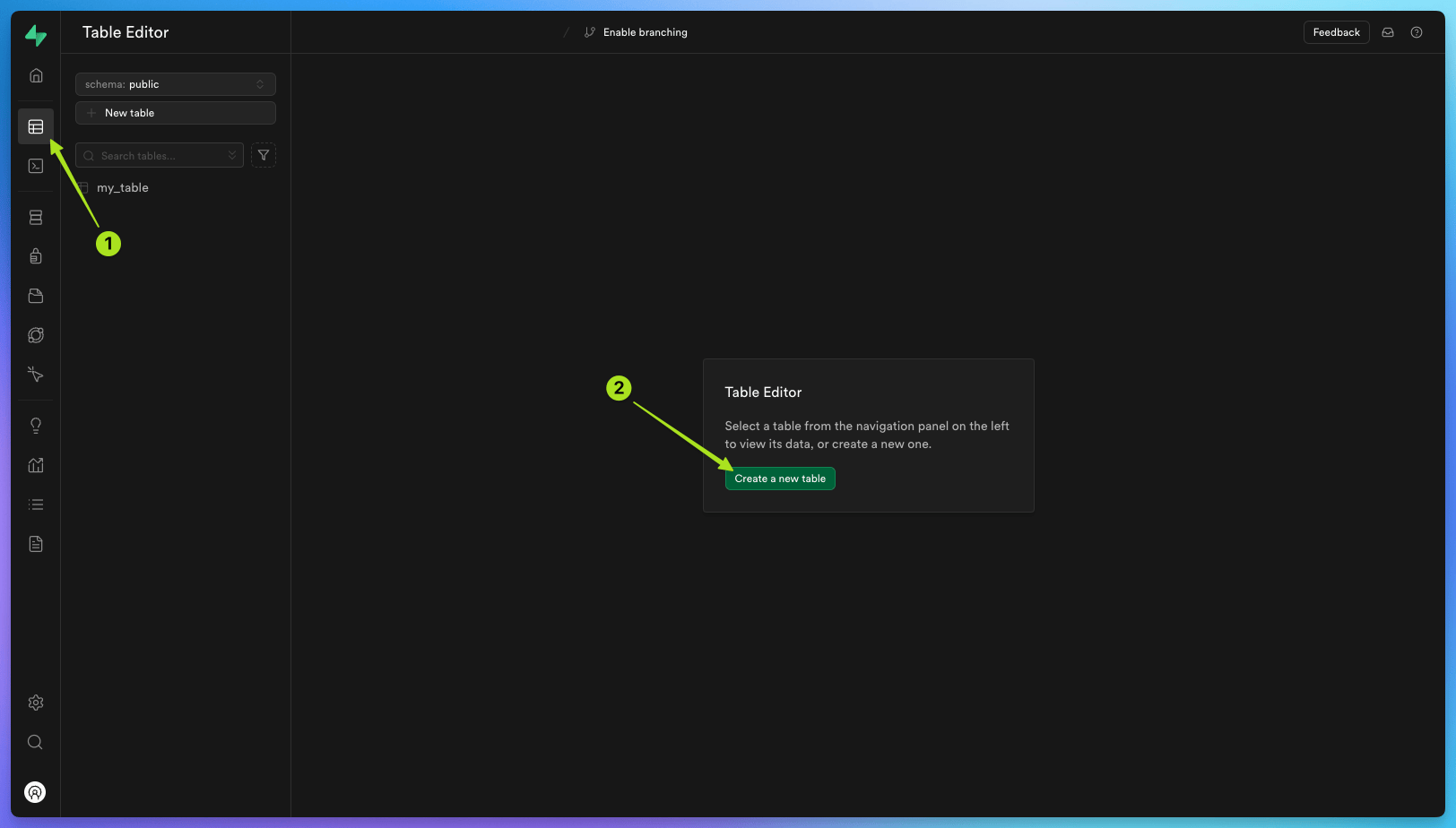
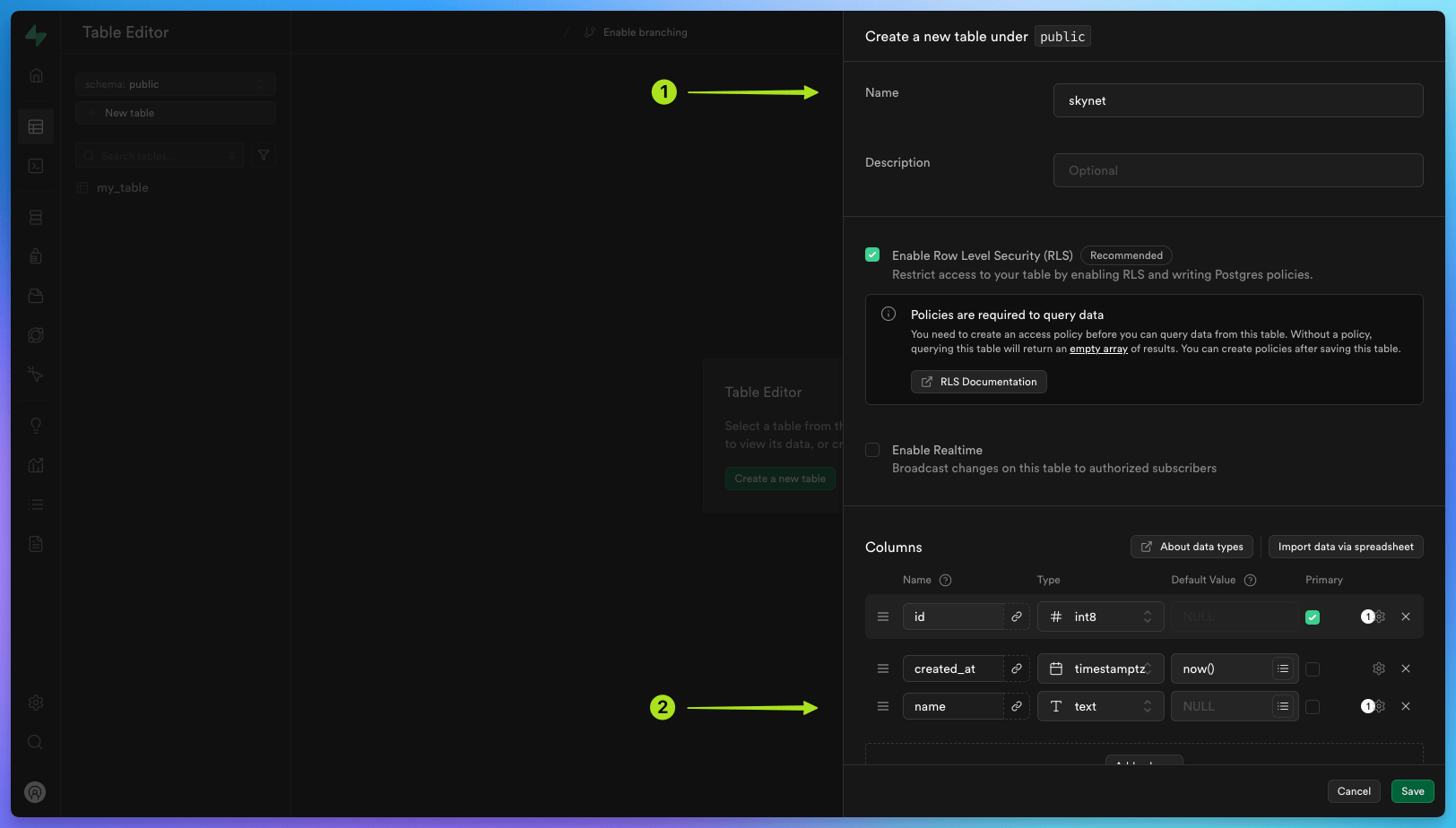
In this example we will call our table `skynet`.
Add a new column called `name` with the type `text`.
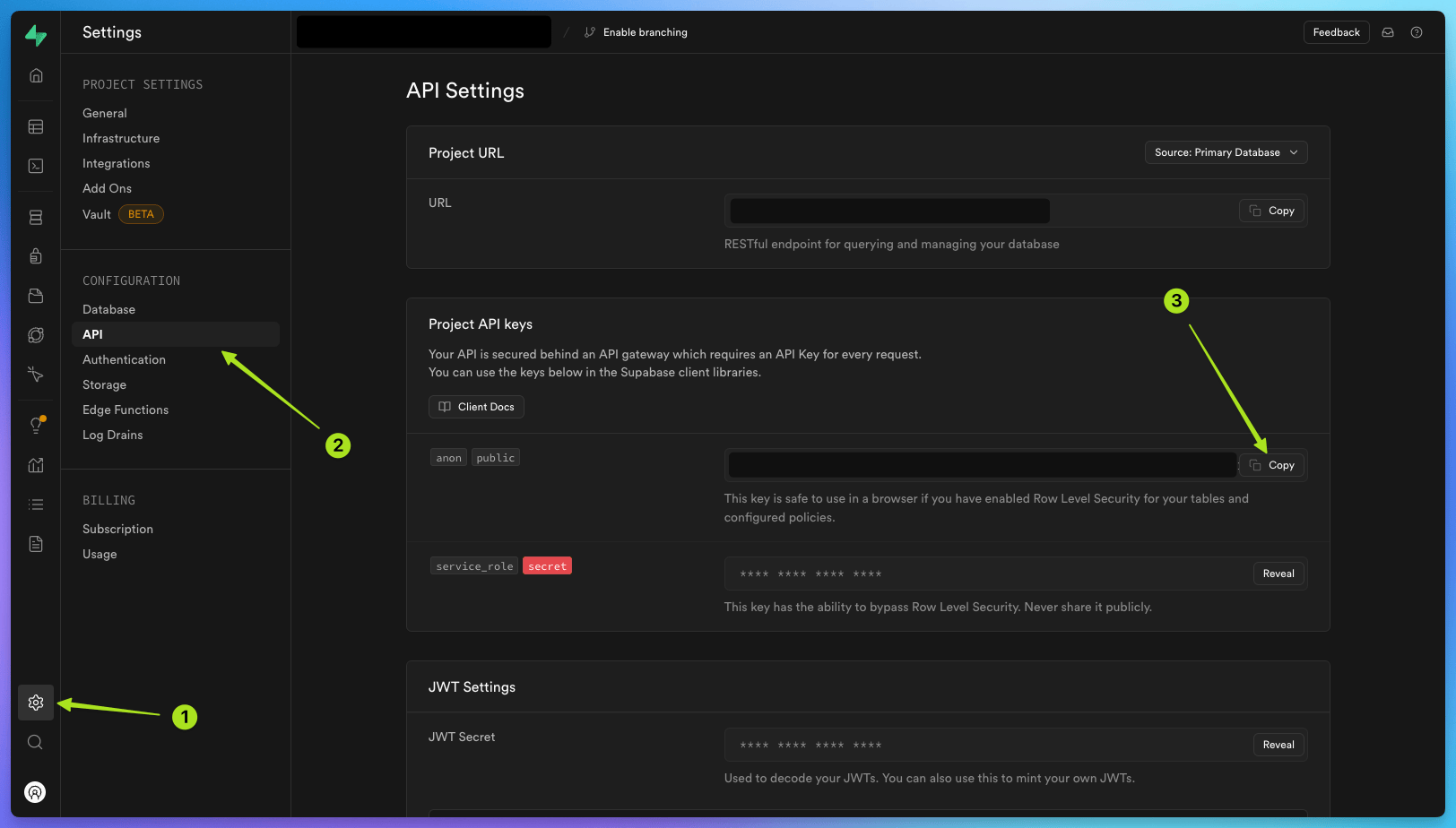
By default, Supabase edge functions require a JSON Web Token [JWT](https://supabase.com/docs/guides/auth/jwts) in the authorization header. This is to ensure that only authorized users can access your edge functions.
In your Supabase project dashboard, click 'Project settings' , then the 'API' tab , and copy the `anon` `public` API key from the table .
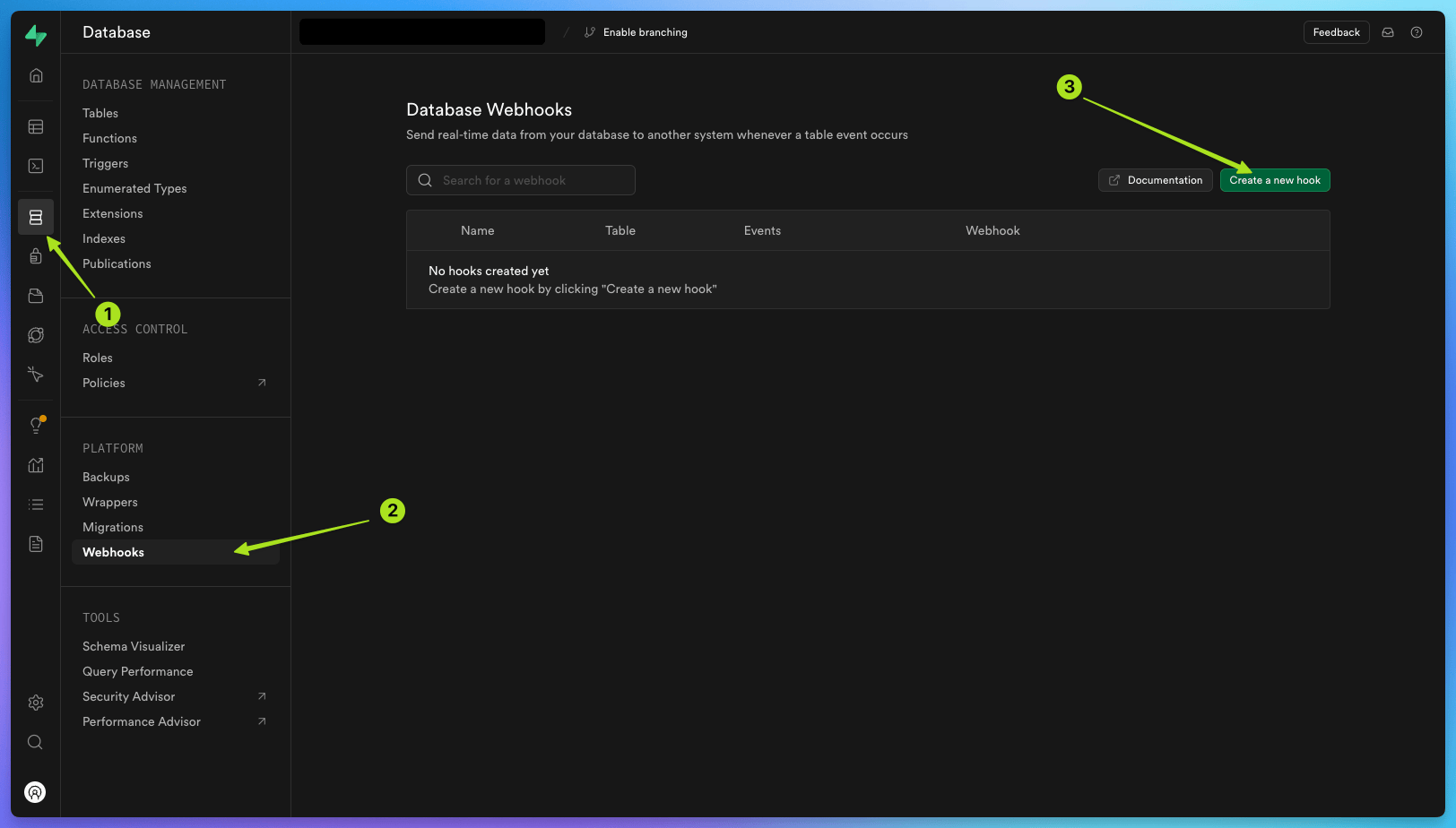
Then, go to 'Database' click on 'Webhooks' , and then click 'Create a new hook' .
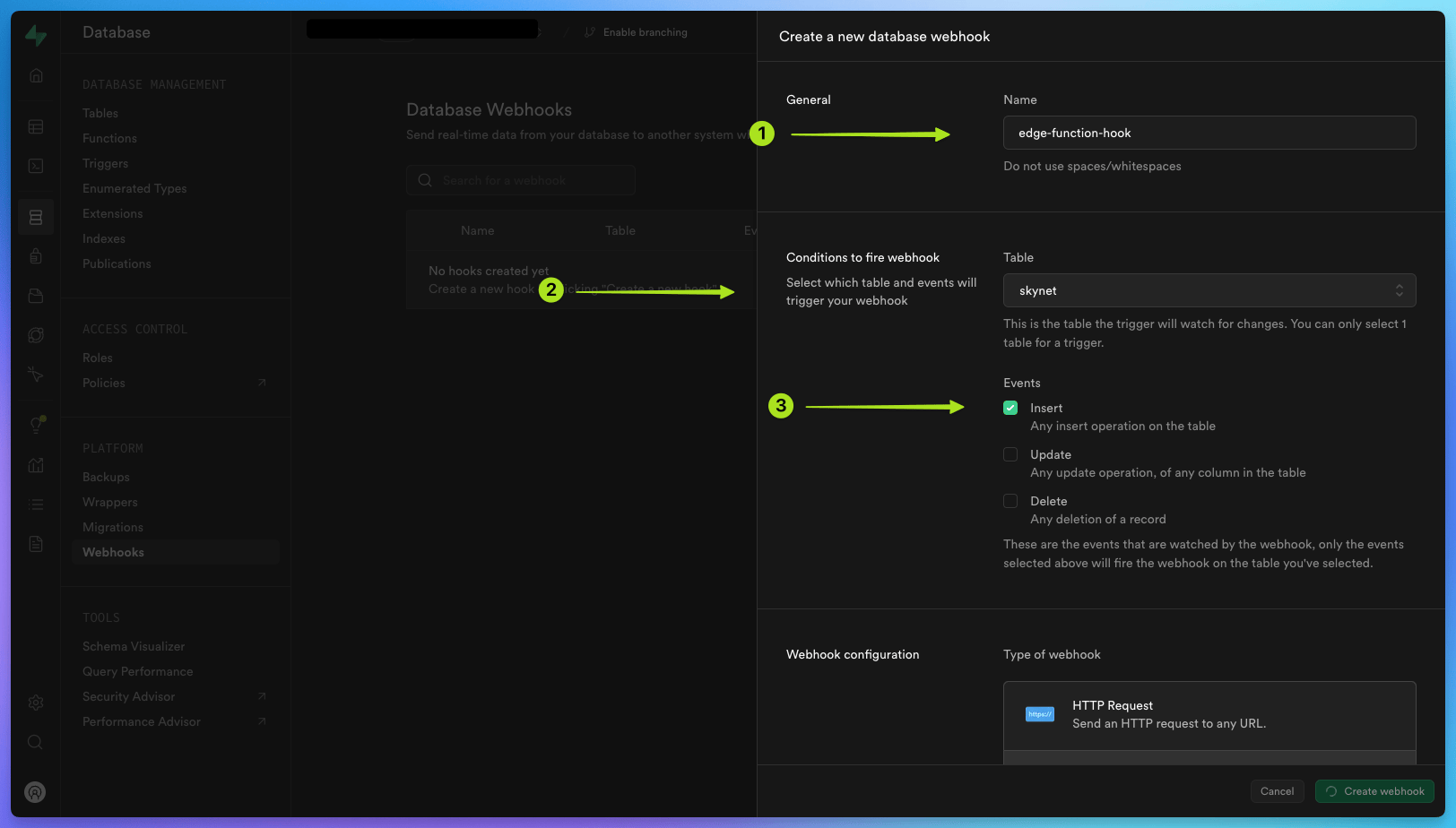
Call the hook `edge-function-hook`.
Select the new table you have created:
`public` `skynet`.
Choose the `insert` event.
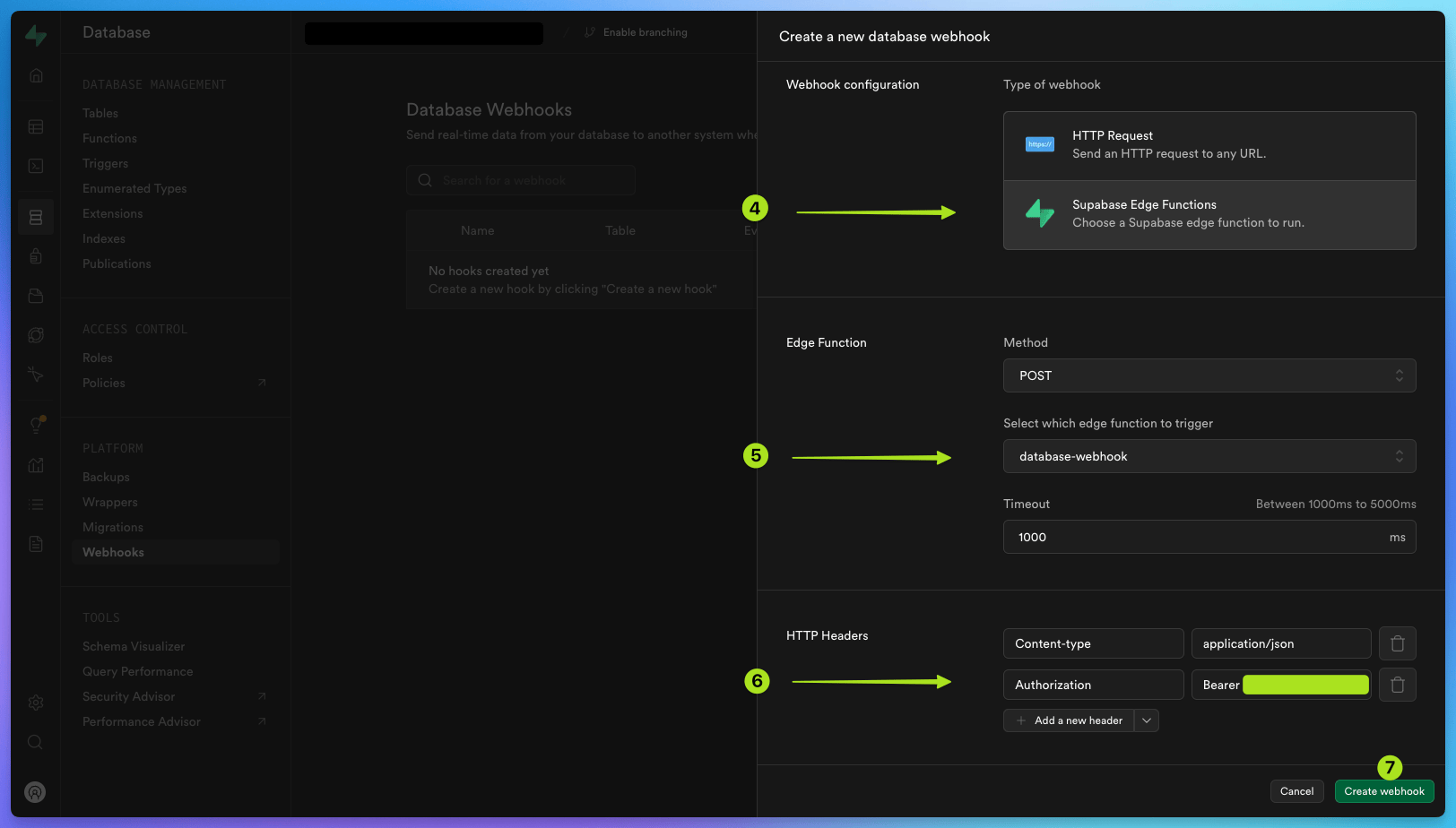
Under 'Webhook configuration', select
'Supabase Edge functions'{" "}
Under 'Edge function', choose `POST`
and select the edge function you have created: `database-webhook`.{" "}
Under 'HTTP Headers', add a new header with the key `Authorization` and the value `Bearer ` (replace `` with the `anon` `public` API key you copied earlier).
Click 'Create webhook'.{" "}
Your database webhook is now ready to use.
## Deploy your task and trigger it from your new `database-webhook` edge function
The next step is to deploy your `hello-world` task to [Trigger.dev cloud](https://cloud.trigger.dev).
To do this, run the following command in the terminal:
```bash npm
npx trigger.dev@latest deploy
```
```bash pnpm
pnpm dlx trigger.dev@latest deploy
```
```bash yarn
yarn dlx trigger.dev@latest deploy
```
Your `database-webhook` edge function is now set up to trigger the `hello-world` task every time a new row is inserted into your `skynet` table.
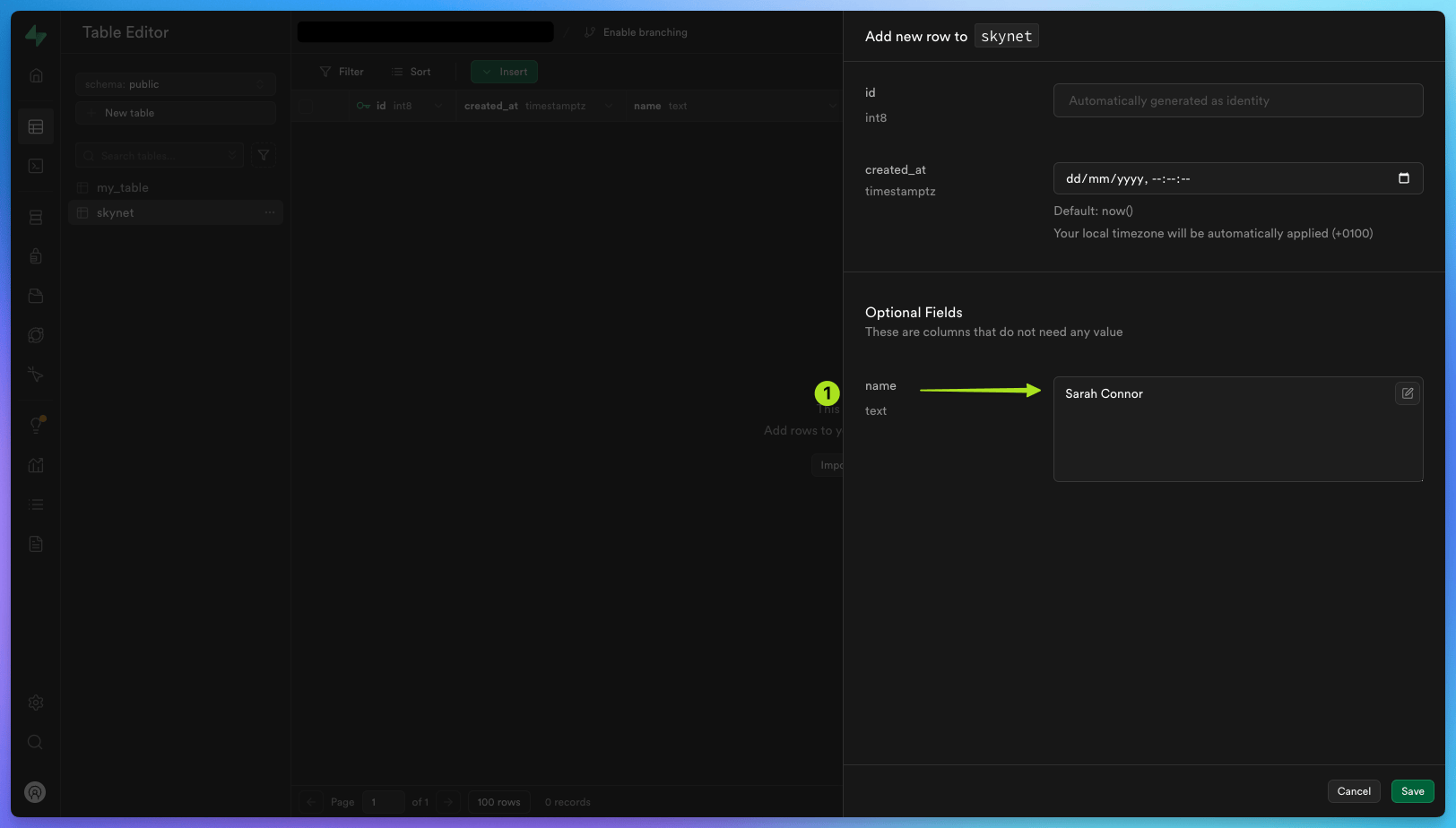
To do this, go back to your Supabase project dashboard, click on 'Table Editor' in the left-hand menu, click on the `skynet` table , and then click 'Insert', 'Insert Row' .
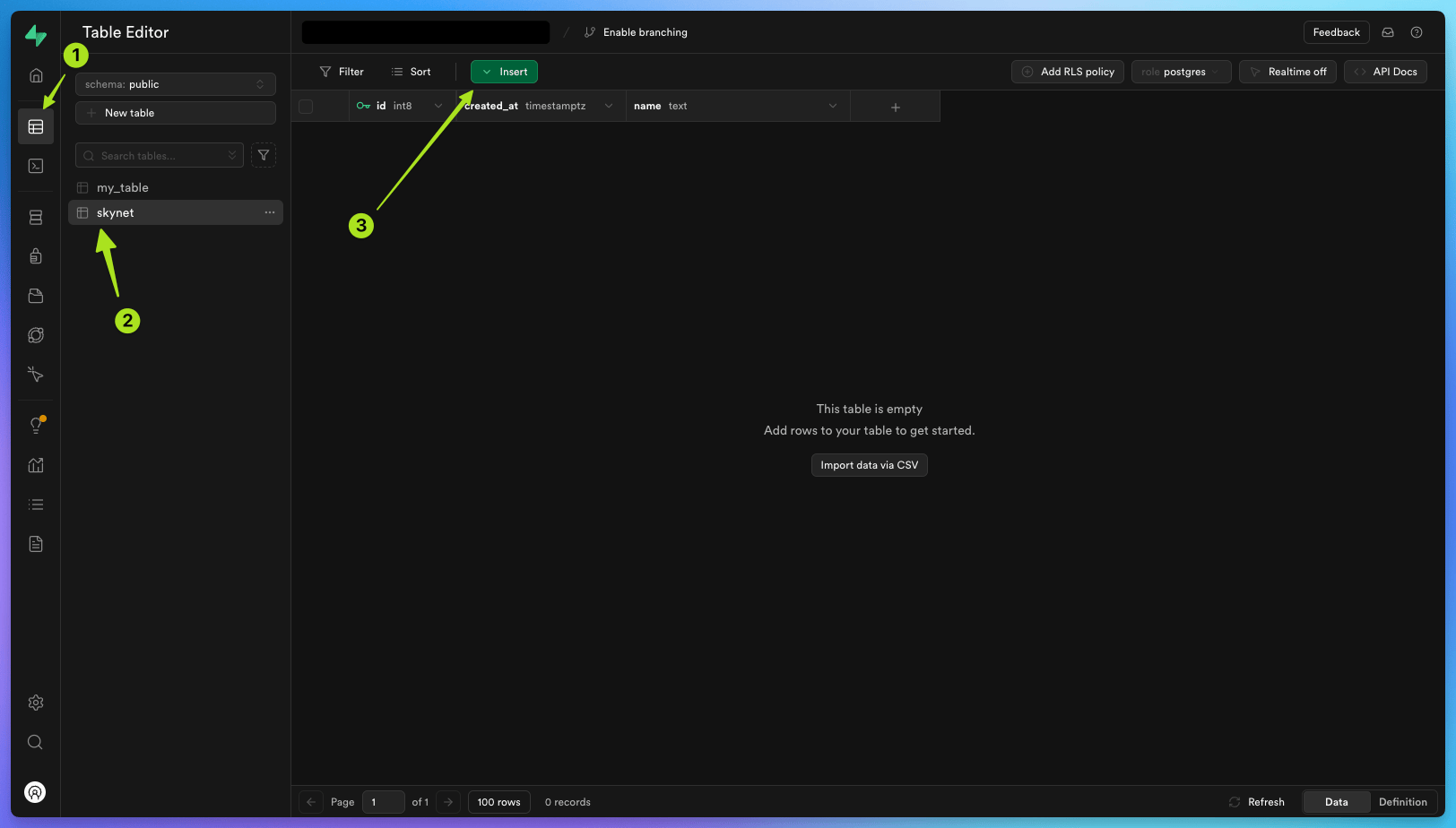
Add a new item under `name`, with the value `Sarah Connor` (this can be any string).
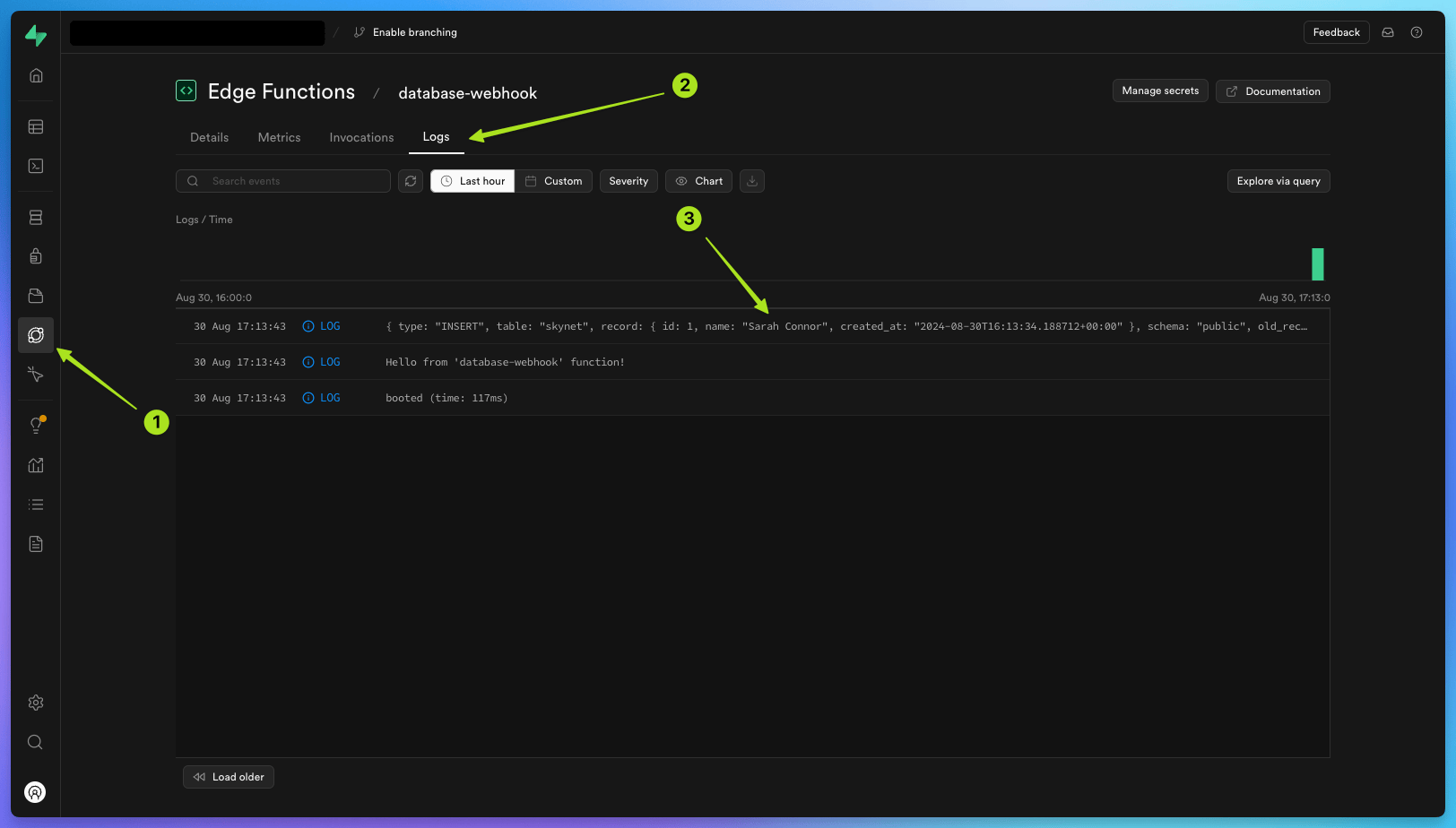
Go back to your edge function dashboard , and under 'Logs' you should see a new run of your `database-webhook` edge function.
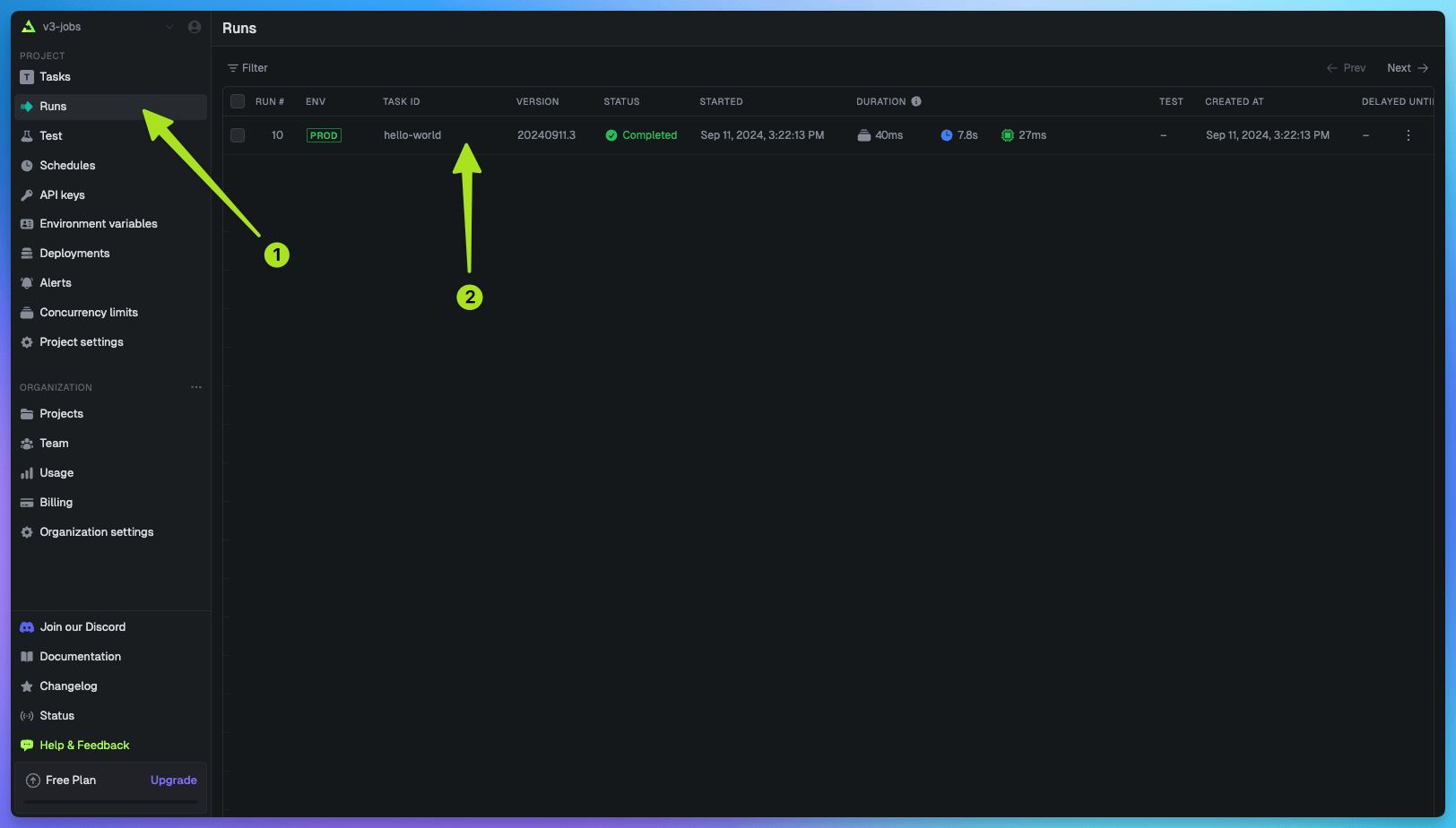
Then, check your [cloud.trigger.dev](http://cloud.trigger.dev) project 'Runs' list and you should see a successful `hello-world` task which has been triggered when you added a new row with the `name` `Sarah Connor` to your `skynet` Supabase table.
Inside that run you will see the payload that was sent from the database webhook, including the `name` and other table information.
**Congratulations, you have successfully triggered a task from a Supabase edge function using a database webhook!**
## Learn more about Supabase and Trigger.dev
### Full walkthrough guides from development to deployment
Learn how to trigger a task from a Supabase edge function when a URL is visited.
Learn how to trigger a task from a Supabase edge function when an event occurs in your database.
### Task examples with code you can copy and paste
Run basic CRUD operations on a table in a Supabase database using Trigger.dev.
Download a video from a URL and upload it to Supabase Storage using S3.